Showing posts with label CD/DVD Programs. Show all posts

Saturday, October 6, 2012

Bootable USB Windows [Made In KIYAMBEK]

ASALAMUALAIKUM WR WB

       Berikut ini adalah cara membuat sendiri Bootable USB Flashdisk Drive Windows 7 menggunakan program Power ISO versi 4.8 ke atas. Saya memakai Power ISO v5.3. Caranya tentu saja dengan prinsip kemudahan dan semua harus bisa.
Siapkan adonan berikut ini :
  • Program Power ISO
  • File .iso Windows 7 hasil download atau pinjam DVD.iso tetangga sebelah
Cara membuat :

1. Buka program Power ISO. Masukkan DVD Windows 7 anda ke CD/DVD ROM Pc anda. Kemudian klik Tool Pilih pilihan Make CD/DVD/BD Image File, destination folder penyimpanan nya arahkan ke salah satu drive di pc anda.

2. Tunggu proses peng-copy-an selesai
3. Pasang USB FDD ke PC, bila terdapat file penting didalamnya silakan backup terlebih dahulu file-file penting anda.
4.Setelah selesai proses pembuatan file .iso. Klik Tool pada menu Power ISO, sekarang pilih Create Bootable USB Drive. Di area Source Image File klik kotak Browse untuk memilih file .iso hasil copy pada langkah awal. Pada destination USB Drive pilih di drive mana USB FDD anda terbaca pada Computer. Selanjutnya pada area Settings, ubah Write Method menjadi USB-HDD.

5. Klik Start untuk memulai proses. Bila muncul jendela peringatan klik OK karena file pada USB FDD telah di backup. Dan di jendela berikutnya Next.

6. Tunggu proses peng-copy-an file .iso kedalam USB FDD hingga selesai.

7. Bila telah tampil Write USB drive successful menandakan proses selesai, klik OK di jendela berikutnya.

       Tutup program Power ISO, lepaskan USB FDD dari komputer dan biarkan dingin. Kemudian pasang kembali USB HDD anda ke komputer dan lihat di Computer terbaca seperti apa USB HDD anda.

       Sekarang saatnya untuk mencoba USB HDD anda untuk bekerja. Pasang USB HDD ke komputer yang akan di install ulang. Restart/hidupkan komputer untuk masuk menu BIOS. Ketika pertama kali komputer booting tekan tombol F2 untuk masuk menu BIOS. Pilih pada menu Boot. Lihat apakah USB HDD anda ada pada daftar Boot device priority.

       Arahkan kursor ke USB HDD anda, kemudian gunakan tombol + [plus] untuk memindahkan posisi USB HDD anda menjadi first boot prior. Tekan tombol F10 dan Enter untuk menyimpan perubahan.

       Selanjutnya komputer akan reboot kembali, klik Enter saat muncul Boot from USB HDD. Proses selanjutnya melakukan peng-copy-an file instalasi Windows 7 ke drive C:\.
CATATAN: Setelah selesai melakukan peng-copy-an maka komputer anda akan restart/reboot kembali. Pada saat booting awal tekan tombol F2 untuk melakukan pengaturan boot prior kembali. Ubah boot prior ke Harddisk anda dan bukan lagi USB HDD. Tekan tombol F10 dan Enter untuk menyimpan perubahan.

       Mengapa harus mengubah Boot prior setelah proses peng-copy-an selesai???
Bila anda tidak melakukannya anda tidak akan berjumpa dengan menu seperti gambar diatas. Dan komputer anda akan berputar kembali ke menu COPYING terus menerus. Dan tak pernak masuk menu SETUP Windows. Berbeda apabila booting melalui CD/DVD ROM.

       Selesai sudah keseluruhan proses pembuatan bootable USB FDD Windows 7 dan pengujiannya sekaligus. Semoga dapat memberikan sedikit saja pencerahan kepada rekan-rekan semua. KENAPA HARUS ORANG LAIN BILA KITA SENDIRI BISA !!!
SEMOGA BERMANFAAT

wasalamualaikum wr wb

Arek NGAJUM IsoIso Ae [The Fully Fuckin' Headache Lion]


Thursday, April 19, 2012

Alcohol52% Free Edition

Asalamualaikum Wr Wb


ALCOHOL 52% FREE EDITION this tool is CD/DVD program freeware and you wouldn't be a drunkard to use it everyday long.


Alcohol 52% Free Edition

Now supports Windows 8 Consumer Preview

Version 2 release
includes a brand new User Interface with full unicode support
New Folder Management, and enhanced Reading engines.
You can download a new plugin for version 2 that will allow you to convert your discs to MP3

There are no limitations on this version, other than the ability to create only 6 virtual drives. Our retail version still supports 31 virtual drives.

Remember you can not run Alcohol 52% if you have Alcohol 120% installed on the same drive.

This version of Alcohol 52% is for private, non-commercial, single home computer use only.The license is provided personally to you and for that reason it does not allow you to make any duplicate (copy) to be sold, borrowed, assigned, leased or transferred.

Emulation software allowing users to play CDs DVDs without the need for the physical disc. Notebook users and PC Game players would benifit the most from Alcohol 52% Supports 25 plus languages Can handle up to 6 virtual CD DVD-ROM drives, all at once. The reading speed of a virtual CD-ROM is 200X.

This means you can play a CD from the virtual CD-ROM with 200X reading speed. Supports normal CD DVD and CD RAW sub-channel reading methods: RAW reading method enables to emulate all CDs.

CD formats supported: CD-DA, CD+G, CD-ROM, CD-XA, Video CD, Photo CD, Mixed Mode, 

Multi-session CD DVD formats supported: DVD-ROM, DVD-Video, DVD-Audio Support for all current (ATAPI SCSI) drives: CD-R, CD-RW, DVD-RAM, DVD-R, DVD-RW, DVD+RW Full support for IEEE-1394 (Firewire) and USB protocols.

Winner of the 2006 Epsilon Award at the sixth annual European SharewareConference


may be useful

wasalamualaikum wr wb

Arek NGAJUM IsoIso Ae [The Fully Fuckin' Headache Lion]


Friday, September 2, 2011

NERO Multimedia Suite 10 ( PC World Review )

       Nero Multimedia Suite 10 Features Plenty of Enhancements, But it still Lacks Coherency and Finesse.

With Nero Multimedia Suite 10 ($100, price as of march 29, 2010), Nero has finally begun to take steps addressing what its perennially powerful burning suite has lacked--easy creativity. The new MediaHub component--a combination media organizer, media player, photo editor and slideshow creator--offers a friendly interface. The Nero Vision Video editor and authoring software gets some major changes, too, including better prefabricated art and templates; sadly, its interface still has one foot in the Nero's past.

While Multimedia Suite still comprises a number of individual components, unbundled version of major components are now available. MediaHub and Vision are sold separately as Nero Vision xTra for $60; Nero Burning ROM for $50 ( as it was before the suite wars with Roxio began ); and the capable imaging/file backup/synching BackitUp & Burn for $40. You're still better off with the suite if you think  you'll want at least two of these core functions.
       MediaHub's interface is far friendlier than that offered by the most of Multimedia Suite 10's components. ( Only BackItUp & Burn can match it ) Its extensive file support is also impressive. Not only does it handle common media and file such as audio CD, DVD, JPEG, MPEG, bitmaps, MP3 and wave, it also recognizes more esoteric types such as compressed TIFF, FLAC, APE, and non-standard wave file resolutions such as 24-bit/88khz. It also understand  DirectShow Filters (codecs ) such as QuickTime, MP4, HD WMV, .FLV (Flash ), and MKV.
       MediaHub also offers an inline photo editor similar Google's Picasa; the photo editor allows quick tweaking, correction, and even adding special effects to photos. Nero Stumbles, however, by not offering an inline editors music and video ( an unfortunate omission, since Nero Multimedia Suite 10 includes Nero WaveEditor and Nero Vision video editor ). If Nero can take MediaHub that xtra step, though-bringing all of Nero's diverse media editing functionality under MediaHub pleasing interface--the company will be on to something that should appeal to users at all levels, since no organizer/player on the market that edits all three major types of media. 
      The other component which have received a major upgrade is Nero Vision 10. The timeline editor is vastly improve with a new look, more tracks, and easier tools. There are also major changes under the hood such as Smart Encoding ( not re-encoding material that already matches the output format ) and support for Nvidia's CUDA hardware AVC/.264 acceleration. Also, you may now produce Blu-ray content without purcasing and additional plugin, as well as apply themes to an entire movie. Themes are comprised of cohesively styled FX, transitions, titles. Unfortunately, the authoring and project dialog still suffer the old amateurish interface.
       Nero Burning ROM, Nero's long standing component for burning virtually any type of disc has finally acquired the ability to span discs for data jobs. The new DiscSpan job even let you mix disc types ( CD, DVD, BD-R ); the last disc will contain an app so you don't need to install Nero in other to restore the archive. The other convenient improvement is the Burn Now button, which saves you a step by bypassing the options dialog that Burning ROM traditionally opened before burning a project.
       Other individual components of the suite not already discussed also remain largely the same; The StartSmart launch center which also handles basic burning tasks, Nero StartTrax for recording audio, Recode for transcording video to different formats, and Cover Designer for making CD sleeves and labels. Utilities for gathering media and drive info, and recovering data from all sorts of media are still there as well. BackItUp & Burn performs both imaging and file based backup and has a new, friendlier firts-run wizard.
       Alas, in spite of the improvements, Nero Multimedia Suite 10 retains the discombobulated feel of a product that's changed directions multiple times and never stuck with any of them. Let's hope Nero takes MediaHub and runs with it.
       Confused look or no, the highly capable and versatile Nero Multimedia Suite 10 is still very viable contender to Roxio Creator 2010 and Cyberlink's Media Suite. It's leaner and faster than either, though Roxio still offer better prefab content and Cyberlink's unified look gives it nicer overall feel.
DOWNLOAD LINK :


if don't work try these :


Wassalamualaikum warahmatullaahi wabarakatuuh.

minal aidin wal faidzin kepada seleruh saudara seiman se tanah air dan umat muslim se Dunia. mohon maaf lahir dan bathin atas semua kekeliriun atau ada kata atau goresan pada blog ini yang menyinggung dan tidak layak...

Arek NGAJUM IsoIso Ae


Friday, August 19, 2011

How To Burning ISO File On Windows 7

      Basically how to burn files with CD burning programs is the same, there are many programs that can be used to burn a file into a CD or DVD. As an example of common and widely used in general is NERO, Power ISO, Ashampoo Burning Studio etc.
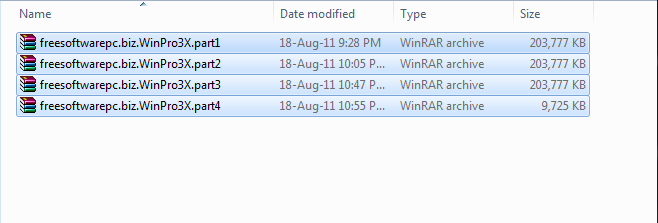
      But this time i will share how to burn ISO files onto a CD using Power ISO on Windows 7. I prefer to use the program because of its simple interface and easy to understand. Before you Burn the ISO files into a CD or DVD, first prepare the ISO files from the downloads that had previously been done. However because the file is still in some parts of the file extention RAR then we must unite those files first.
The way is very easy, blocks all ISO RAR files then right click and select 'Extract Here' see the image

Note: the new files that emerge from the last extract, make a new folder and name the folder 'XPSP3' or anything what's up your will power. After that COPY and PASTE the new file had to extract the folder and do to the file into the folder 'XPSP3'

Pay attention!! do not delete ISO RAR ( Windows XP Professional SP3 Integrated March 2011 SATA) and let it mix with all the file extracted. When finished exit and close the folder.
Now open Power ISO program to start the actual burn an ISO file. I hope you are using CD-RW just to avoid wasting CD's when errors occur in the process burning it.
1. On the main menu of Power ISO click on 'Open'
2. Find the folder where you store your windows xp iso file that was last perform.
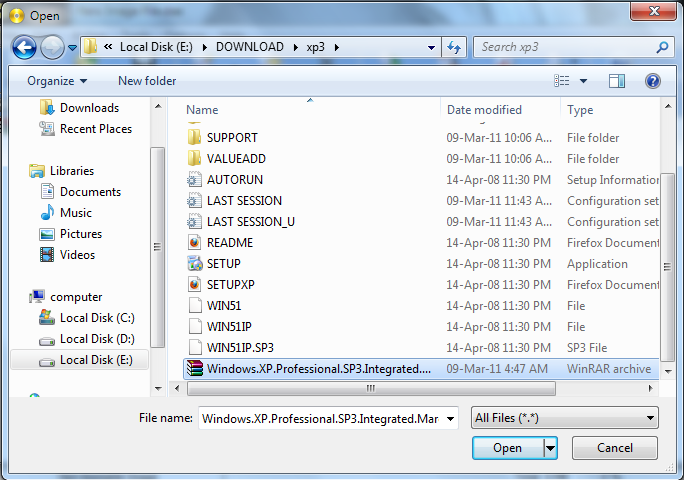
    Previously to the new dialog box that appears on the next to 'File Name' change to 'All Files'. Scroll the mouse down and at the very buttom click the option 'ALL Files' then navigate to the folder where the ISO file 'XPSP3' save it.

Pay attention!! select ISO file is still in RAR form only (Windows XP Professional SP3 Integrated March 2011 SATA.rar), then click 'Open' button. So automatically all the files in the folder 'XPSP3' will be extracted into the program Power ISO and you can see on the left below that the file is 'Bootable Image' or actually an ISO file which you can boot via CD-ROM drive in your system BIOS.
After all files are listed as in the example image, click 'Burn' button. After that a new dialog window will appear.
Note: if you use a CD-RW see on the box 'Burning Parameter' in the 'Burning Speed' change of the value of Maximum to 10X(1765KB/s). Because when kept at the 'Maximum' value to make the result of using CD-RW burning failed. Then click 'Burn' button on it window.

So easy and simple steps to burn an ISO file using the program Power ISO  is a user friendly. I hope to give something that benefits us all. For those who do not have Power ISO download it HERE.
For all the attention i would like to thank you profusely.

Wassalamualaikum warahmatullaahi wabarakatuh


Arek NGAJUM IsoIso Ae